
3.1 Create your first Database
Before entering any subject or study data, you must create an IOLResearch database.
Each database is stored as an independent document with its own file extension:
.iolresearch
This document-based system allows you to:
Create separate databases for different studies, sites or projects.
Open, rename, move and manage each database independently.
Keep the information from different studies clearly separated.
Open a database on another compatible device when it is stored in iCloud Drive or transferred manually.
Important: The location selected when creating the database determines where the data are stored and whether they can be synchronised with other devices.
Create a new database
Open IOLResearch.
Tap New Database.
The iPadOS document browser will open.
Tap Browse to display the available storage locations.
Select either On My iPad or iCloud Drive.
Open the IOLResearch folder.
Tap Create Document.
IOLResearch will create and open the new database.
The database can be renamed later by using the menu next to its current name.
Option A: Create a local database
Select On My iPad when the database should remain stored on the current iPad.
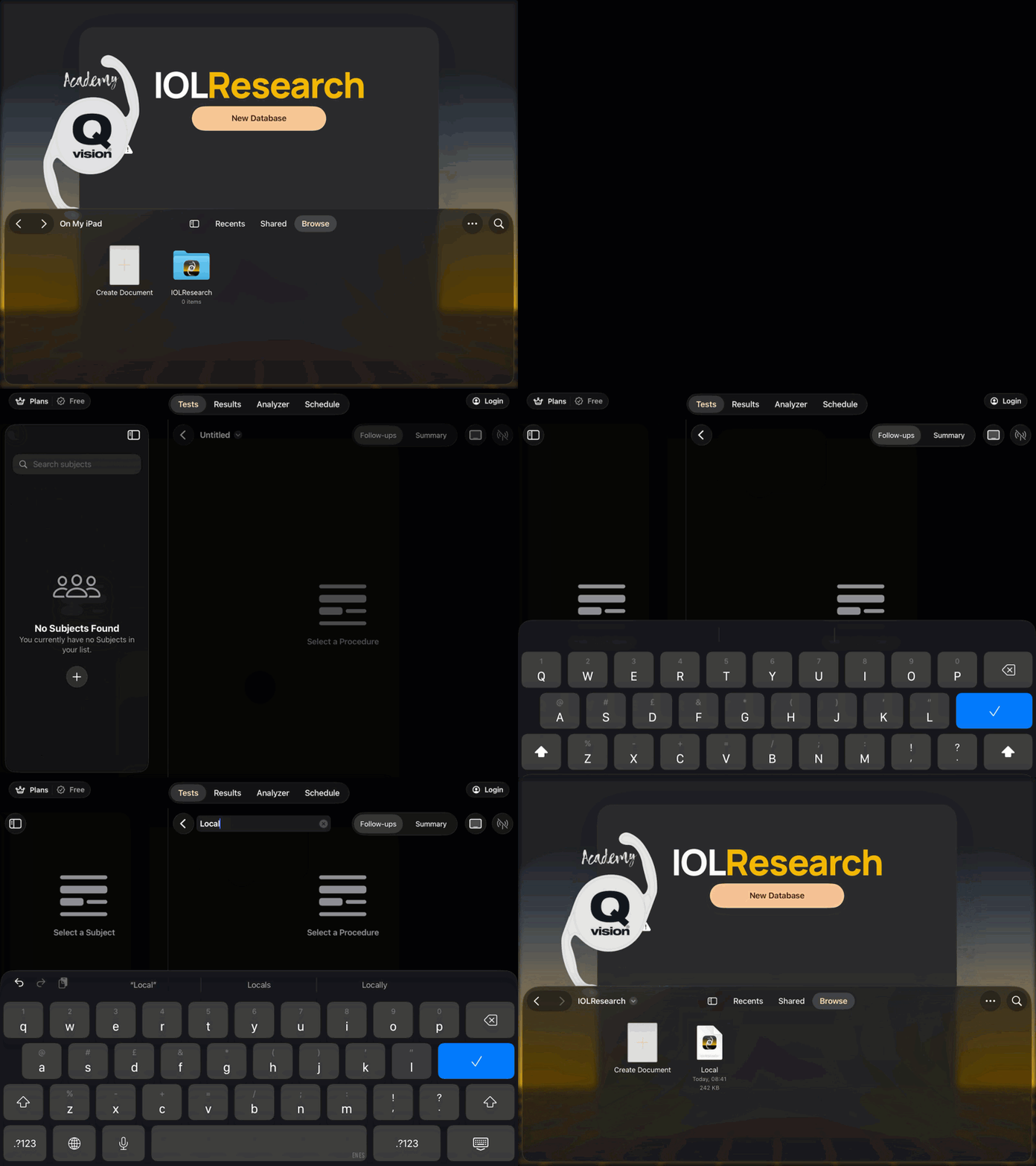
Steps
Tap New Database.
Select the Browse tab.
Under Locations, tap On My iPad.
Open the IOLResearch folder.
Tap Create Document.
Wait for the new database to open.
What local storage means
A database created under On My iPad is stored locally on that device. It is not automatically synchronised through iCloud Drive and will not automatically appear on another iPad or Mac.
IOLResearch writes the information entered by the user into the selected database document. It does not automatically upload that information to an IOLResearch server.
Apple identifies On My iPad as the location for files stored locally on the device. Apple Files documentation
Security recommendation: Protect the iPad with a strong passcode, automatic screen locking and an up-to-date version of iPadOS. Apple’s Data Protection system provides operating-system-level encryption for files stored on the device.
Local database warning
If the iPad is lost, damaged or reset, the database may be unavailable unless an authorised backup or exported copy exists.
Deleting the only database document removes all subjects, procedures, protocols, follow-ups and results stored inside it from IOLResearch. Files deleted through the Files app may remain recoverable under Recently Deleted for up to 30 days. Apple file deletion guidance
Option B: Create a database in iCloud Drive
Select iCloud Drive when the database should be synchronised through the user’s Apple Account.
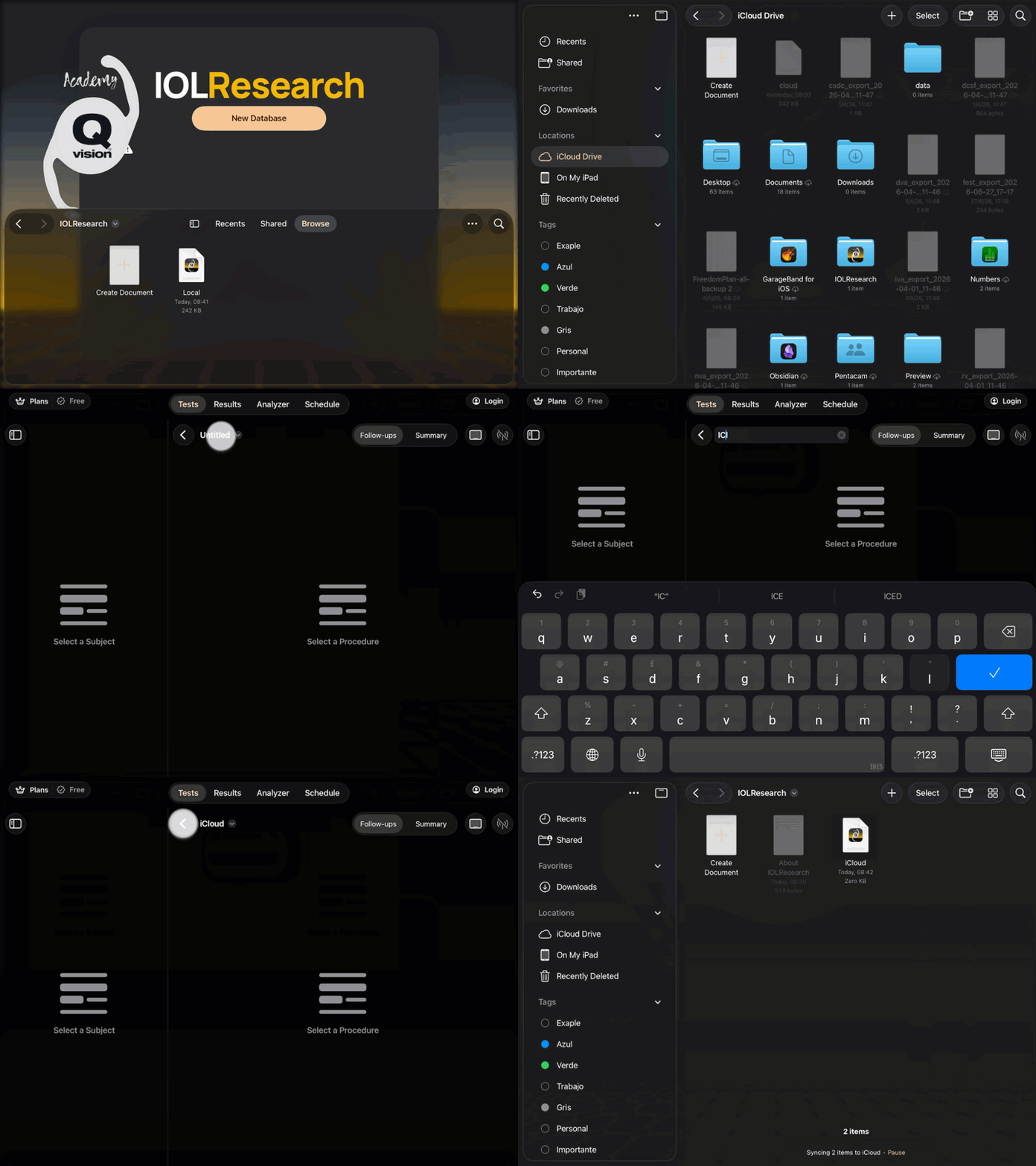
Steps
Tap New Database.
Select the Browse tab.
Under Locations, tap iCloud Drive.
Open the IOLResearch folder.
Tap Create Document.
Wait for the database to open.
Allow iCloud to complete synchronisation before opening the database on another device.
What iCloud storage means
A database created in iCloud Drive is stored and synchronised using Apple’s cloud service. It can be accessed from other compatible devices when:
The user is signed in with the same authorised Apple Account.
iCloud Drive is enabled.
IOLResearch is installed on the device.
Synchronisation has been completed.
Saving a database to iCloud Drive is a user-selected cloud-storage action. It is not an automatic upload to an IOLResearch server.
Under Apple’s standard protection, iCloud Drive documents are encrypted in transit and on Apple’s servers. When Advanced Data Protection is enabled, iCloud Drive supports end-to-end encryption and the encryption keys remain with the user’s trusted devices. Apple iCloud security overview
Clinical research warning: Before using iCloud Drive, confirm that cloud storage is permitted by the study protocol, sponsor, ethics committee, healthcare organisation and applicable data-protection policy.
Synchronisation precautions
Wait for iCloud synchronisation to finish before opening the database on another device.
Avoid editing the same database simultaneously on multiple devices.
Do not move, rename or delete the document while it is open in IOLResearch.
Use an authorised Apple Account protected by two-factor authentication.
Do not share the database or its iCloud folder unless this has been specifically authorised.
Find an existing database
Use the Files app or the explorer within IOLResearch when you need to confirm where an IOLResearch database is stored.
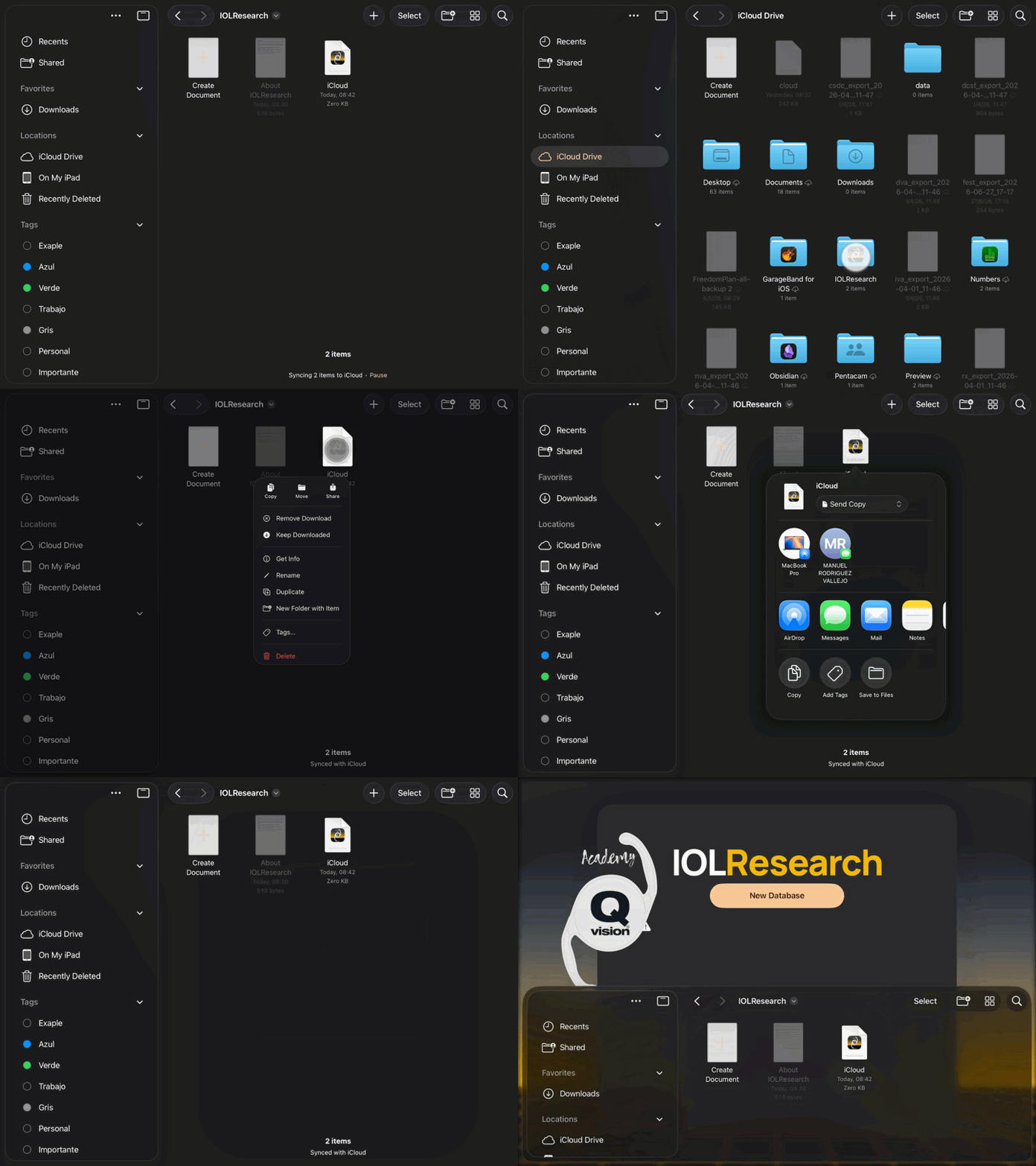
Steps
Open the iPad Files app or IOLResearch Explorer.
Tap Browse.
Look under Locations in the sidebar.
Select:
On My iPad to find locally stored databases.
iCloud Drive to find synchronised databases.
Open the IOLResearch folder.
Locate the required
.iolresearchdocument.Tap the document to open it in IOLResearch.
Tip: The Recents view may show both local and iCloud documents together. Use Browse → Locations when you need to confirm the actual storage location.
The synchronisation message displayed at the bottom of the Files app can help identify whether iCloud is still uploading or downloading documents.
Export or share a database
An IOLResearch database can be exported or shared using the standard iPadOS sharing options.
Locate the
.iolresearchdocument in the Files or IOLResearch Explorer app.Touch and hold the database file for a few seconds.
Wait for the contextual menu to appear.
Tap Share.
Select one of the sharing options available on the iPad.
Depending on the apps and services configured on the device, the iPadOS share sheet may offer options such as:
AirDrop.
Mail.
Messages.
Save to Files.
An approved institutional cloud-storage provider.
Another compatible application.
Sharing normally creates or sends a copy of the database. The original document remains in its current location unless the user separately moves or deletes it.
To open the exported document as an IOLResearch database, the receiving device must have a compatible version of IOLResearch installed.
Before sharing an iCloud database: Wait until iCloud synchronisation has finished. This helps ensure that the exported file includes the latest changes.
Clinical data warning
An .iolresearch document may contain pseudonymised clinical research data, including subject codes, demographic variables, implanted intraocular lenses, procedures, follow-ups and results.
Only export or share a database when:
The recipient is authorised to access the study data.
The transfer method is approved by the institution and study protocol.
The destination complies with the applicable security and data-protection requirements.
The database contains no names, medical record numbers or other prohibited direct identifiers.
Avoid using personal email accounts, consumer messaging applications, public sharing links or unapproved cloud services for clinical research databases.
Important: Once a database has been exported or shared, the new copy exists independently from the original. Deleting the original database from the iPad will not delete copies already sent to other people, devices or storage services. Each authorised copy must be managed according to the study’s access, retention and deletion policy.
Local or iCloud: which location should you choose?
Consideration | On My iPad | iCloud Drive |
|---|---|---|
Storage location | Current iPad | Apple’s cloud service and synchronised devices |
Internet required | No | Required for synchronisation |
Availability on other devices | No automatic access | Yes, after synchronisation |
Automatic cloud transmission | No | Yes, to iCloud |
Recovery after losing the iPad | Depends on an authorised backup | May be recovered through the Apple Account |
Risk of synchronisation conflicts | Very low | Possible if edited on multiple devices |
Suitable when cloud storage is prohibited | Usually yes | No |
Account security required | Device passcode | Device passcode, Apple Account and two-factor authentication |
Main advantage | Greater control over where the active database is stored | Easier continuity, synchronisation and recovery |
Main drawback | Loss of the device may mean loss of the database | Clinical data are stored outside the individual iPad |
Recommendation
There is no single location that is appropriate for every study.
Choose On My iPad when:
The study must remain on one controlled device.
Institutional policy prohibits cloud storage.
Internet access is unavailable or unreliable.
Maximum control over the active database location is required.
In this case, establish an approved backup procedure. Local storage without a backup creates a risk of permanent data loss.
Choose iCloud Drive when:
The database must be available on more than one compatible device.
Easier recovery after replacing or losing an iPad is required.
Cloud storage has been authorised by the responsible institution.
An approved and appropriately protected Apple Account is available.
When permitted, enable two-factor authentication and consider Advanced Data Protection. Maintain an appropriate account-recovery method because Apple cannot recover end-to-end encrypted iCloud Drive data if all trusted access and recovery methods are lost.
Recommended approach for clinical studies: Follow the study’s approved data-management plan. If the plan does not explicitly permit iCloud storage, use local storage or consult the study sponsor, institutional IT department or data-protection officer before placing clinical research data in iCloud Drive.